Authentication
VectorFlow supports multiple authentication methods: local credentials, OIDC/SSO, and two-factor authentication (2FA). This page covers initial setup, login methods, user management, and role-based access control.
Initial setup
When VectorFlow starts for the first time with an empty database, it redirects to a setup wizard. The wizard creates the first admin account and the first team.
Create admin account
Enter your name, email address, and a password (minimum 8 characters).
Name your team
Choose a name for your first team (e.g., "Platform Engineering"). Teams organize environments and pipelines.
Start using VectorFlow
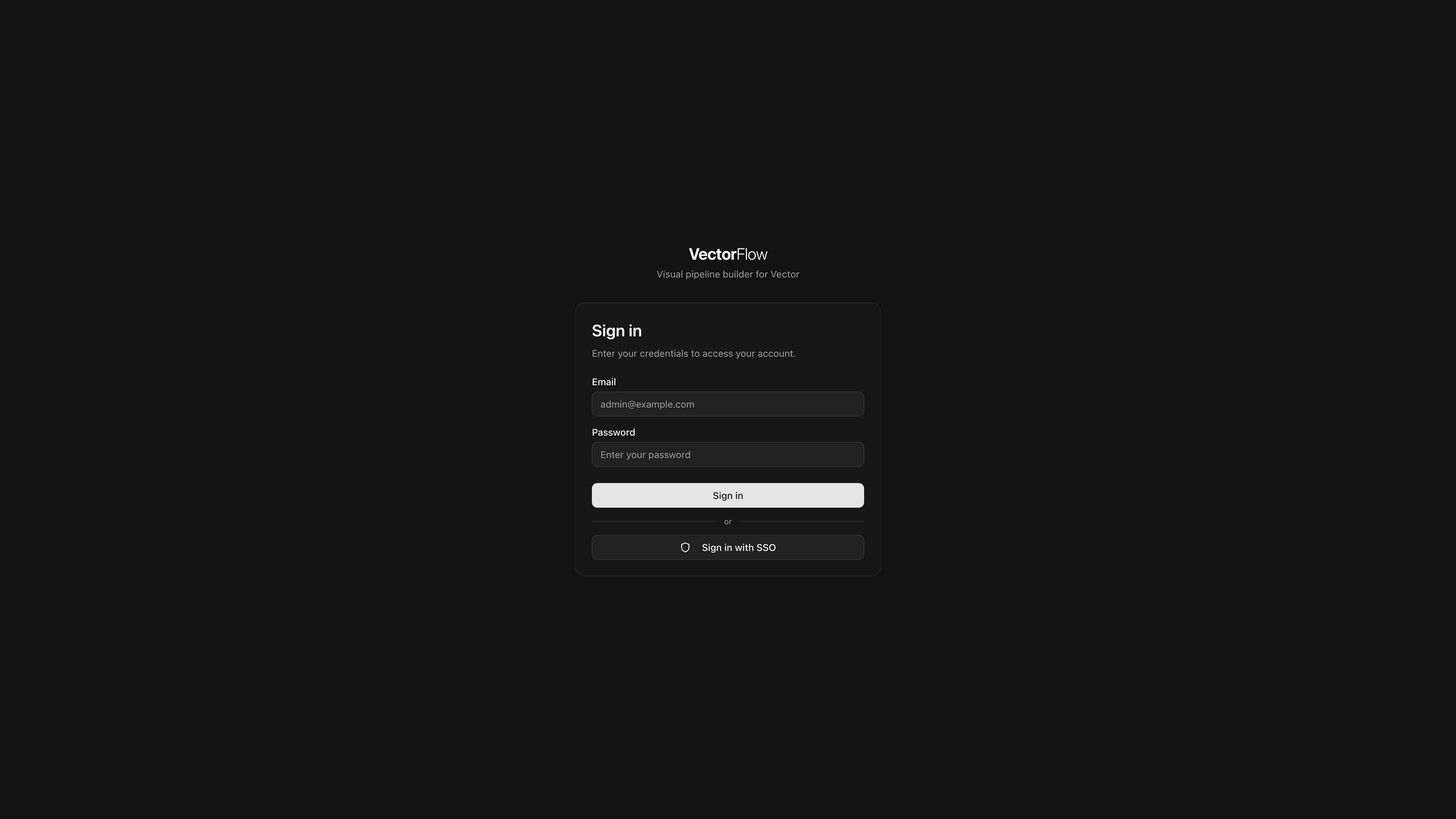
After setup completes, you are redirected to the login page. Sign in with the credentials you just created.
The first user is automatically a Super Admin with full platform access.
Credentials authentication
By default, users log in with an email address and password. Passwords are hashed with bcrypt before storage.
When a Super Admin creates a new user, VectorFlow generates a random temporary password. The new user must change their password on first login.
OIDC / SSO
VectorFlow supports any OpenID Connect provider (Okta, Entra ID, Keycloak, Google Workspace, Auth0, etc.). SSO is configured from the Settings page by a Super Admin.
Register VectorFlow with your identity provider
Create an OAuth2/OIDC application in your identity provider. Use the following redirect URI:
https://your-vectorflow-url/api/auth/callback/oidcOpen Settings in VectorFlow
Navigate to Settings > Authentication (Super Admin required).
Enter provider details
Fill in the OIDC configuration:
| Field | Description | Example |
|---|---|---|
| Issuer URL | OIDC discovery endpoint | https://accounts.google.com |
| Client ID | OAuth2 client ID from your provider | abc123.apps.googleusercontent.com |
| Client Secret | OAuth2 client secret | GOCSPX-xxxxxxxxxxxx |
| Display Name | Button label on the login page | Sign in with Okta |
| Token Auth Method | How the client authenticates to the token endpoint | client_secret_post (default) or client_secret_basic |
Test the connection
Click Test Connection to verify VectorFlow can reach your provider's discovery endpoint. The test fetches /.well-known/openid-configuration and validates that required fields are present.
Save and verify
Save the settings. An SSO button will appear on the login page. Test the flow by logging in with an SSO account.
OIDC settings are stored encrypted in the database. The client secret is encrypted with AES-256-GCM before storage.
Group mapping
VectorFlow can automatically assign users to teams based on their identity provider group memberships. Group mappings are configured from Settings > Team & Role Mapping and are shared between OIDC and SCIM — the same mapping table drives both protocols.
Group sync is off by default and must be explicitly enabled. When enabled, VectorFlow operates in one of two modes depending on whether SCIM is active:
Groups are read from the OIDC token on each login. Team memberships are reconciled — users are added to mapped teams and removed from teams they no longer belong to (based on the groups present in the token). Changes to group mappings in Settings > Team & Role Mapping take effect on the user's next login.
SCIM is the primary lifecycle manager for group memberships. Your IdP pushes group membership changes (create, update, remove) via SCIM, and VectorFlow tracks them internally. OIDC login acts as a real-time refresh, using the union of SCIM group data and token groups to reconcile team memberships. Changes to group mappings in Settings > Team & Role Mapping take effect immediately for all SCIM-managed users.
Manual assignments are preserved. Team memberships assigned manually in the VectorFlow UI are never modified by automated group sync. If you want group sync to fully manage a user's membership on a team, remove the manual assignment first.
Highest role wins. When a user belongs to multiple IdP groups that map to the same VectorFlow team, the highest role is used (Admin > Editor > Viewer).
Enable group sync
Toggle Enable Group Sync on. This tells VectorFlow to process group-to-team mappings. When enabled, OIDC logins read group claims from the token, and SCIM group pushes use the same mapping table to assign team memberships.
Configure scope and claim
| Field | Default | Description |
|---|---|---|
| Groups Scope | groups | Extra OIDC scope to request from the provider. Leave empty if your provider includes groups automatically (e.g., Azure AD, Cognito). |
| Groups Claim | groups | Token claim containing group names (e.g., groups, cognito:groups, roles). |
Scope is what you ask the provider for in the authorization URL. Claim is where you read the groups from in the returned token. These are usually the same value (e.g., groups for Keycloak, Pocket ID, Authentik), but some providers differ — for example, AWS Cognito uses no extra scope but returns groups under the cognito:groups claim.
Add group mappings
Map identity provider groups to VectorFlow teams with specific roles. These mappings apply to both OIDC sign-ins and SCIM group pushes — you only need to configure them once.
| Column | Description |
|---|---|
| Group Name | The group name as it appears in the OIDC token or SCIM Group displayName |
| Team(s) | One or more VectorFlow teams to assign the user to. Click the team selector to open a dropdown with checkboxes — select multiple teams to map a single group to several teams with the same role. When multiple teams are selected, the field shows a count (e.g., "3 teams") that you can click to view or modify the selection. |
| Role | The role to assign: Viewer, Editor, or Admin |
Set defaults
Configure a Default Team and Default Role as a fallback. If a user logs in and has no group matches (no IdP groups map to any VectorFlow team), they are assigned to the default team with the default role.
Changing group sync settings takes effect immediately — the OIDC provider configuration is rebuilt without requiring a server restart. In SCIM+OIDC mode, mapping changes are applied to all SCIM-managed users at save time. In OIDC-only mode, changes take effect on each user's next login.
SCIM provisioning
VectorFlow supports SCIM 2.0 for automated user provisioning and deprovisioning from your identity provider. When SCIM is enabled, your IdP can automatically create, update, and deactivate VectorFlow user accounts.
SCIM is configured from Settings > SCIM by a Super Admin. You will need to generate a bearer token and enter it along with the SCIM base URL ({your-vectorflow-url}/api/scim/v2) into your IdP's SCIM configuration.
SCIM group provisioning does not create teams automatically. Instead, SCIM groups are resolved through the shared group mapping table to assign users to existing teams. Make sure your group mappings are configured before enabling SCIM group pushes.
SCIM works best alongside OIDC/SSO. Users created via SCIM should authenticate through your identity provider rather than with local credentials. See the SCIM Provisioning page for detailed setup instructions and IdP-specific guides.
Two-factor authentication (2FA)
VectorFlow supports TOTP-based two-factor authentication compatible with any authenticator app (Google Authenticator, Authy, 1Password, etc.).
Enabling 2FA
Users can enable 2FA from their Profile page. Teams can also require 2FA for all members -- when enabled, users who have not set up 2FA are redirected to the enrollment page on their next login.
Start 2FA setup
Navigate to your Profile page and click Enable Two-Factor Authentication, or you will be redirected automatically if your team requires it.
Scan the QR code
Scan the displayed QR code with your authenticator app. Alternatively, enter the secret key manually.
Save backup codes
VectorFlow generates 10 single-use backup codes. Save these in a secure location. Each code can be used once to log in if you lose access to your authenticator app.
Verify
Enter the 6-digit code from your authenticator app to confirm setup. 2FA is now active on your account.
Logging in with 2FA
After entering your email and password, you are prompted for a 6-digit verification code. Enter the code from your authenticator app, or use one of your backup codes.
2FA is only available for local (credentials) accounts. OIDC/SSO users should configure MFA through their identity provider.
User management
Super Admins can manage users from the Settings > Users page.
Creating users
Super Admins can create new local user accounts. VectorFlow generates a random temporary password that must be shared with the user securely. The user is required to change their password on first login.
When creating a user, you can optionally assign them to a team with a specific role immediately.
When SCIM provisioning or OIDC group sync is enabled, a banner appears in the Add Member dialog: "SSO users are managed by your identity provider. Only local users can be added manually." SSO-managed users should be provisioned through your IdP rather than created here.
Managing users
| Action | Description |
|---|---|
| Assign to team | Add a user to a team with a specified role (Viewer, Editor, or Admin) |
| Remove from team | Remove a user's membership from a specific team |
| Reset password | Generate a new temporary password (local accounts only) |
| Lock account | Prevent the user from logging in. Locked users see an error on the login page |
| Unlock account | Restore login access for a locked account |
| Toggle Super Admin | Grant or revoke platform-wide Super Admin privileges |
| Delete user | Permanently remove the user and all their data |
You cannot delete your own account, remove your own Super Admin status, or lock your own account.
Roles and permissions
VectorFlow uses a hierarchical role system. Roles are assigned per team, so a user can be an Admin in one team and a Viewer in another.
| Role | Permissions |
|---|---|
| Viewer | View pipelines, fleet status, dashboards, and audit logs. Cannot make changes. |
| Editor | Everything a Viewer can do, plus: create/edit/delete pipelines, manage secrets and certificates, deploy pipelines, manage alerts. |
| Admin | Everything an Editor can do, plus: manage environments, manage team members and roles, configure team settings (e.g., require 2FA). |
| Super Admin | Platform-wide access. Can manage all teams, configure system settings (OIDC, fleet, backups), create and delete users. Super Admin is a flag on the user, not a team role. |
Role hierarchy
Viewer  <  Editor  <  Admin  <  Super Admin
  (0)       (1)       (2)       (bypass)
Higher roles inherit all permissions from lower roles. Super Admin bypasses all team-level access checks.
SSO-only mode
To enforce SSO-only authentication and hide the local login form, set the environment variable:
| Variable | Default | Description |
|---|---|---|
VF_DISABLE_LOCAL_AUTH | false | When true, hides the email/password form and only shows the SSO button on the login page |
When SSO-only mode is active, the login page shows a simplified layout:
- A centered card with a shield icon
- The heading "Sign in"
- The message "Use your organization's single sign-on to access your account."
- A single button: "Sign in with [Provider Name]" (using the display name configured in OIDC settings)
The email/password form and all local authentication options are hidden.
Before enabling SSO-only mode, ensure your OIDC provider is correctly configured and tested. The only way to re-enable local login is to change the environment variable and restart the server.
SSO-only mode acts as a breakglass mechanism -- if SSO breaks, an administrator can re-enable local login by setting VF_DISABLE_LOCAL_AUTH=false and restarting the container.
SSO-managed roles
When users authenticate via OIDC or are provisioned via SCIM, their team roles are managed by the identity provider. Admins cannot change roles for SSO-managed users in the VectorFlow UI -- the role dropdown is locked with a tooltip indicating the role is managed by the identity provider.
Role updates happen:
- On login -- OIDC group claims are reconciled against team mappings. The user is added to newly matched teams, removed from teams they no longer match, and roles are updated to reflect the highest mapped role.
- Via SCIM -- When SCIM group membership changes are pushed, team memberships are reconciled immediately based on team mappings. Removals cascade correctly — if a user is removed from their only group mapping for a team, they are removed from that team.
Manual team assignments (made in the UI) are not affected by SSO-managed role sync. Only memberships created by group sync are subject to reconciliation.
Users without team assignments
When a user authenticates successfully (via SSO or local credentials) but is not a member of any team, VectorFlow displays a full-page message instead of the normal dashboard:
- A "No Team Assigned" heading with a shield icon
- A message: "Your account is active but you haven't been assigned to a team yet. Contact your administrator to get access."
- The user's identity (name or email)
- A Sign Out button
This typically occurs when:
- A new SSO user logs in before group mappings or manual team assignments are configured
- A SCIM-provisioned user has not been assigned to any group that maps to a VectorFlow team
- An admin removes a user from all teams
The user can still access the password change dialog if their account requires it. Once an admin assigns them to a team (or group sync places them on one), the full dashboard becomes available on next login or page refresh.